

















 Blogging · Notion
Notion, at both ends of your social calendar.
Publish posts into Notion as pages and database rows, from the same composer as every other network. Or flip it round: plan in a Notion database, and every row marked Ready goes out to Instagram, LinkedIn and the rest on its own.

Our autumn menu is here
Six new drinks, two returning favourites, and the pastry everyone asked us to bring back.
What’s new
Maple oat latte
Spiced pear cold brew
Cardamom bun, back for good
Three clicks, and you pick exactly what we see.
Notion has its own sign-in for apps, so there is no token to copy and no internal integration to set up. You choose the pages on Notion's screen, and that list is the whole of Ocoya's access.
Pick Notion
Open Channels in Ocoya and choose Notion from the list. There is no API key to create and no integration to build in Notion’s settings.
Channels → Connect channelChoose the pages, in Notion
Notion shows you what Ocoya will be allowed to do, then asks which pages it may see. Tick the ones that matter — Ocoya can never reach anything else.
Select pages → Allow accessChoose your channels
Back in Ocoya, every database you shared and every page you ticked is listed. Each one you choose becomes a channel on your calendar.
ConnectedOcoya sees the pages you tick. Nothing else.
Notion's permission model is a page picker, and it is a good one. Share your marketing area and your content calendar, leave finance and hiring unticked, and those pages simply do not exist as far as Ocoya is concerned — not hidden, unreachable.
- Pages and databases inside a shared page come with it
- Remove any page later from its ••• → Connections menu
- Connect again any time to share more, without losing your channels
···OOcoya wants access to your Notion workspace
Ocoya will be able to
Post into a page, or add a row to a database.
Every database you share and every page you tick can become a channel. A page channel collects each post as a sub-page. A database channel adds a row, with the post's title in the title column — whatever your database calls it — and the rest of the columns left for your team.
- Databases are listed wherever they live, even deep inside a page
- Sub-pages of a shared page are not listed, so the picker stays short
- Each channel is its own slot on the calendar, like any network
Content log
The post fills the title column, whatever it’s called. Every other column is left for your team.
A caption in, a proper Notion page out.
A Notion page is made of blocks, and your post arrives as blocks rather than one grey paragraph. The first line becomes the title. Headings, bullets, numbered lists, quotes and dividers become the blocks they look like, bold stays bold, and links stay clickable.
- The title is never repeated as the first paragraph
- Line breaks inside a paragraph are kept as you typed them
- Long posts are written in full — up to 100,000 characters
Our autumn menu is here
Six new drinks, two returning favourites.
/head
Basic blocks
Headings, lists, quotes and dividers arrive as real blocks — editable, draggable, searchable. Not one long paragraph.
Images, video and GIFs, together on one page.
Most networks make you choose between photos and a video. A Notion page does not, so neither do we: attach up to ten files in any mix and they follow the text in the order you arranged them, each with its alt text as a caption underneath.
- Up to 10 images, videos and GIFs per post, in any mix
- Alt text becomes the caption below each image
- Media is linked from Ocoya, so it does not use your Notion uploads
Our autumn menu is here

 0:24
0:24Autumn menu — Roastery
Six new drinks, two returning favourites.
Rroastery.com
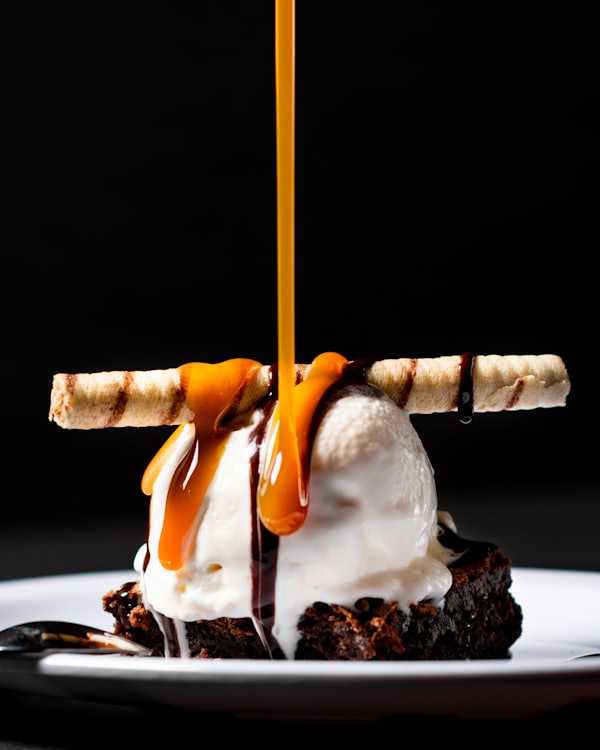
Alt text becomes the caption under each image. Links you added to the post arrive as bookmarks at the end of the page.
Your Notion content calendar, posting itself.
Most teams already plan social in a Notion database and then copy every caption into a scheduler by hand. Point a workflow at that database instead. Ocoya checks it every five minutes, and each new row — or each row you move to Ready — is posted to the networks you choose, with its caption and its images.
- Run for every new row, or only when a column reaches a value
- Each row runs once — moving it back and forth never posts it twice
- Rows already in the database are left alone when you switch it on
- Add an AI step in between to phrase it for each network
New item in a Notion databaseStatus is Ready Posted
 Posted
 Posted
Every column becomes something you can post.
A row is more than a title. Each column is handed to the steps after the trigger, so a caption can quote the publish date, a prompt can read the brief, and the images in a Files & media column become the post's media without anybody downloading them first.
- Any column as {{trigger.column_name}}
- A Caption, Text or Content column fills the post automatically
- The page body is there too, as {{trigger.body}}
Autumn menu launch
Page body
The long version, written once here — available to any step as {{trigger.body}}
What teams do with it.
Notion is where the planning already happens. These are the jobs that stop needing a copy and paste once it is connected.
Run the content calendar in Notion
Plan in the database your team already lives in. When a row is set to Ready, a workflow posts its caption and images to every network.
Keep a record of everything published
Add Notion to a post alongside Instagram and LinkedIn, and every announcement is filed as a row — searchable, taggable, there for the next quarterly review.
Publish long-form to a Notion site
Notion pages can be published to the web. Schedule the write-up to the page behind your public changelog or blog, at the same minute as the posts pointing at it.
Hand drafts to the team
Send AI-written drafts into a review database instead of straight to a network. The team edits, comments and sets the status in Notion, where they already work.
File what a feed or webhook sends
A workflow can turn every new article in an RSS feed, or every call to your webhook, into a summarised Notion page — a reading list that writes itself.
Brief once, post everywhere
Write the brief as a Notion row with a caption column and a few images. One workflow phrases it for each network and publishes, so nobody copies text between tabs.
The details, before you plan around it.
These follow from how Notion itself works, and from how Ocoya reads and writes it.
One thing worth knowing: a database that combines more than one data source can’t be posted to or watched yet. An ordinary database made in Notion has just one, so this rarely comes up.

One draft, filed and announced.
Pick Notion alongside your networks in the composer and the same post goes to all of them at the minute you choose: the full write-up into Notion, the short version to Instagram and LinkedIn, the heads-up to your team’s Slack. Each one under its own limits, each one on the same calendar.
How publishing worksYour Notion stays yours.
Ocoya reads the pages you shared to list them as channels and, for a workflow, the rows of the database it watches. It writes only the pages and rows you publish. It never edits a page you wrote, and deleting a post moves its page to Notion’s Trash rather than erasing it. Removing Ocoya under Settings → Connections in Notion ends its access at once.
Read our privacy policyStart from an example
Post your Notion content calendar to Instagram. Turn Notion ideas into LinkedIn and X posts. File every new blog post as a Notion page. Each one is a ready-made workflow you switch on in a minute.
See WorkflowsBefore you connect
Only the pages you tick on Notion’s screen when you connect, and the pages and databases inside them. Nothing else in your Notion is reachable, and you can remove a page from that list at any time from its ••• → Connections menu.
Your calendar, wired into Notion.
Connect Notion and choose your pages in a minute.